Rpanion Live Video Setup
Rpanion supports live video visible in VLC, Mission Planner and QGC ground stations. This page explains the setup assuming this setup has already been completed and a CSI/MIPI camera is connected to the RPI.
Rpanion’s official setup instructions are here
Configuring Live Video
Connect to the “rpanion” wifi access point (password is “rpanion123”)
Open a browser to http://10.0.2.100:3001/ and enter username: admin, pw: admin
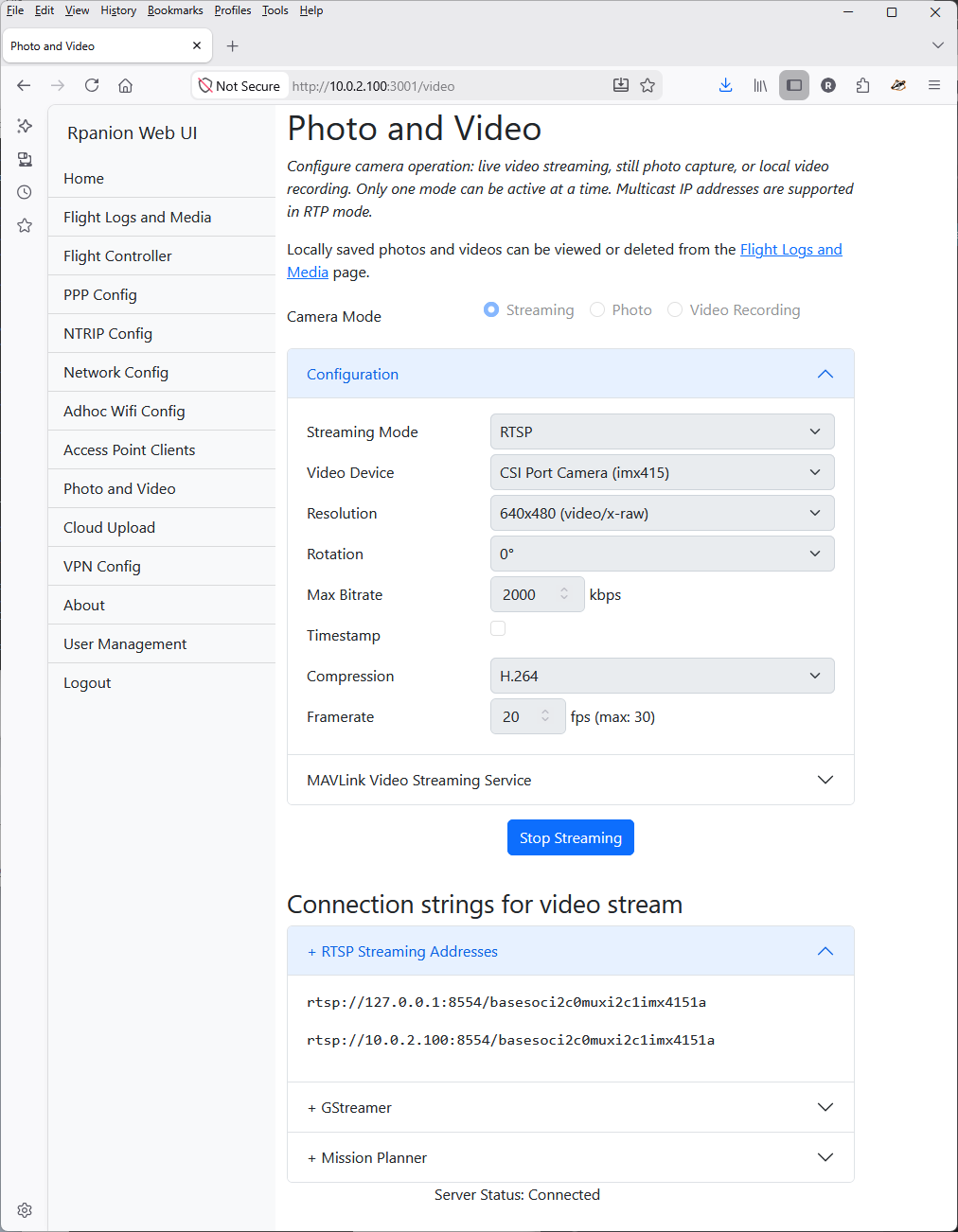
From the left menu select “Photo and Video” and set the following
Camera Mode: Streaming
Streaming Mode: RTSP
Video Device: Select any device listed
If no devices are listed then the RPI could not detect the camera which normally means “dtoverlays” must be added to /boot/firmware/config.txt. The exact overlays depend upon the camera but as a reference, below is the procedure required to support one particular Sony IMX412 camera
Use Putty (or any similar terminal program) to connect to the RPI using SSH
Host Name: 10.0.2.100
Connection Type: SSH
Port: 22
Username/password: pi/raspberry
Open /boot/firmware/config.txt with your favourite linux text editor:
sudo nano /boot/firmware/config.txt
sudo vi /boot/firmware/config.txt
# Automatically load overlays for detected cameras
camera_auto_detect=1
dtoverlay=imx415,addr=0x1a,4lane=1,clk-37125
Save and exit the text editor and reboot the RPI
Reconnect with a browser and check the “Photo and Video” page again
Resolution: set the resolution depending upon the available bandwidth (lower bandwidth will require lower resolution)
Max Bitrate: set depending upon bandwidth. Wifi will typically support 2000-4000 kbps, 4G/LTE will typically support 500-1000 kbps. Lower values will lead to reduced image quality
Framerate: typically 10 ~ 30 FPS. Higher values lead to smoother video and may even perform better on lower bandwidth links
Displaying Live Video on GCS
The bottom of the “Photo and Video” pages includes URLs that may be copy and pasted into VLC, Mission Planner and QGC
See here for more information on displaying live video in Mission Planner