BlueOS OpticalFlow Extension
BlueOS’s Optical Flow Extension allows a downward facing camera gimbal to be used as an optical flow sensor to improve performance in non-GPS environments.
Note
Support for this extension was added in ArduPilot-4.7
Hardware Required
Please see ArduPilot’s BlueOS installation instructions which also includes hardware recommendations.
Any supported camera gimbal with ethernet connectivity should work including the Siyi, ViewPro and XFRobot camera gimbals.
The camera gimbal should be mounted on the underside of the vehicle and optical flow will only operate when the camera gimbal is pointing downwards.
A rangefinder with at least a few meters of range is also required.
BlueOS Extension Installation
Once BlueOS has been installed on the companion computer:
Ensure the companion computer is connected to the internet
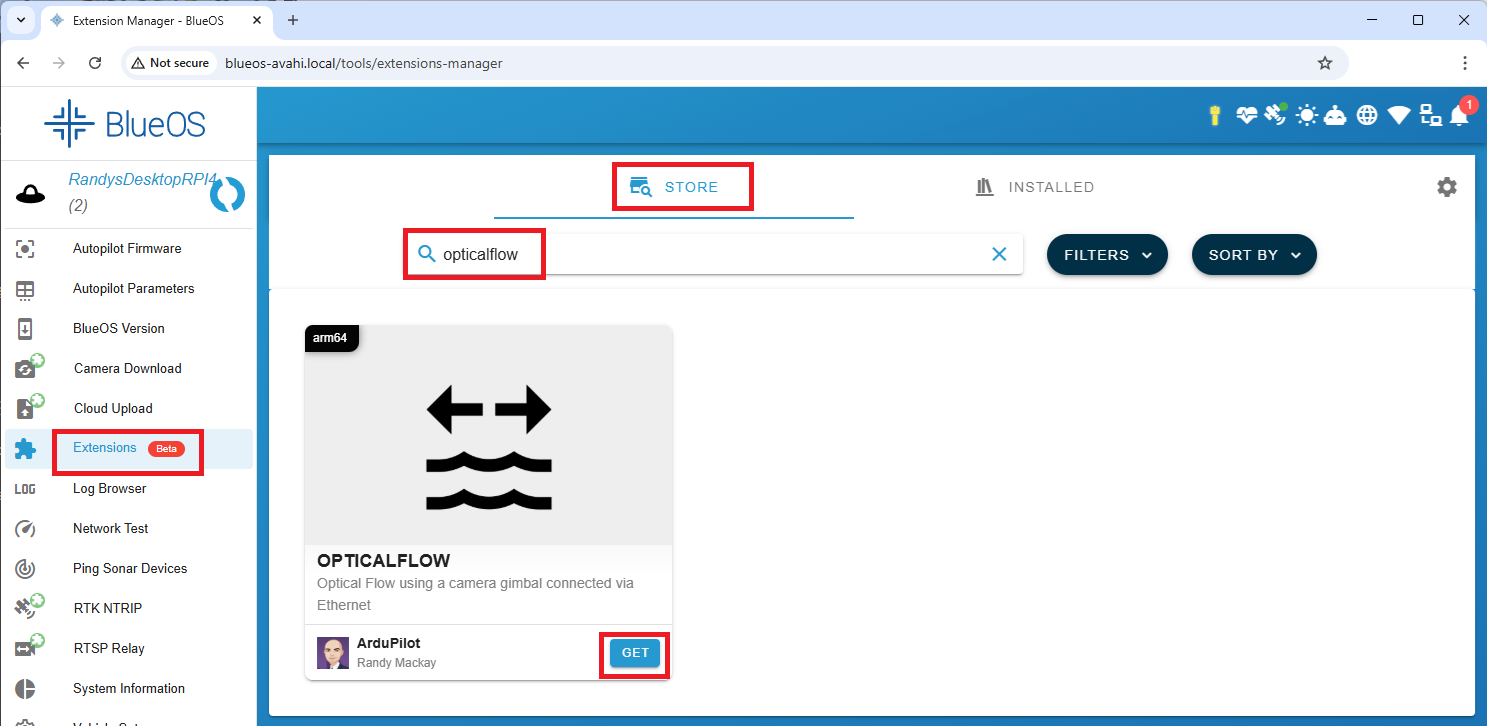
From the left menu, select “Extensions”
Search for “opticalflow” and push the “GET” and “INSTALL” buttons
From the left menu, select “OpticalFlow”
Select the “Camera Type” being used
Adjust the RTSP URL if not using the camera gimbal’s default IP address or RTSP stream
“Flight Controller SysID” should match the vehicle’s MAV_SYSID parameter (normally 1)
Optionally adjust the Horizontal FOV to match the camera gimbal’s lens

AutoPilot Configuration and Calibration
Set FLOW_TYPE = 5 (MAVLink) and reboot the autopilot
Set FLOW_OPTIONS = 1 (Roll/Pitch stabilised)
Set EK3_FLOW_DELAY = 150 (ms)
Optionally set EK3_OPTIONS = 4 (Optflow may use terrain alt) to allow optical flow to be used beyond the rangefinder’s maximum range
The “Inflight Calibration” and “Log based Calibration” methods described in the Optical Flow Sensor Testing and Setup will not work for stabilised camera gimbals. Instead the Extension’s “Horizontal FOV” field can be adjusted if the vehicle’s estimated position on the map (when using optical flow) significantly overshoots or undershoots the actual distance moved.
Performance can be improved by setting the sensors position parameters. For example if the camera gimbal is mounted 2cm forward and 5cm below the frame’s center of rotation set FLOW_POS_X to 0.02 and FLOW_POS_Z to 0.05.